ip
Homura User Guide
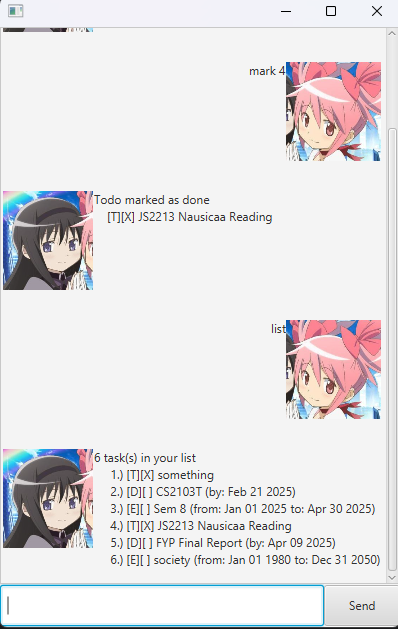
Homura is a chatbot designed to help you keep track of your todo list in a fun and interactive manner.
Homura is able to keep track of 3 different kinds of tasks.
- A basic todo item
- A deadline with a due date
- An event with a start and end date
Users can add, edit, or delete a todo and mark or unmark them as done.
Each item on the todo list will be displayed to the user in the following forms
- Todo -
[T][ ] <description> - Deadline -
[D][ ] <description> (by: MMM DD YYYY) - Event -
[E][ ] <description> (from: MMM DD YYYY to: MMM DD YYYY)
When an item is marked as done, the 2nd [ ] will be changed to [X].
Setup and Execution
The jar file Homura.jar can be run from any directory. The only requirement
is for HomuraTodos.txt to be in the same folder to be able to load your
saved todo list. It can also run without that text file and start with a blank
todo list.
Steps to execute Homura.jar
- Open Powershell if you’re on Windows or Terminal if you’re on Mac
- Navigate to the directory that
Homura.jarfile is in - Run
java -versionand ensure that your terminal is running Java 17 - Run
java -jar Homura.jar
Homura.jar can be closed by either sending bye or clicking the X in the
upper right corner.
Commands Overview
The list of available commands is as follows.
- todo - Create a new todo
- deadline - Create a new deadline
- event - Create a new event
- mark - Mark an item as done
- unmark - Unmark an item (mark as not done)
- edit - Edit information regarding an item (cannot change todo type)
- delete - Delete an item from your todo list
- list - Lists out your entire todo list
- find - Find items in your list containing a certain text
- bye - Save your list and close the bot
Every command is called by sending a message of the form
command_name arguments
where the arguments are space separated and flags of the form /flag are
sometimes used.
Specifics on how to use each function is detailed below. Arguments enclosed
in [brackets] are optional
Todo Command
Create a new todo
Usage: todo <description>
Sample usage:
todo Watch Madoka Magica

Todo added
    [T][ ] Watch Madoka Magica
Deadline Command
Create a new deadline
Usage: deadline <description> /by YYYY-MM-DD
Sample usage:
deadline Watch Madoka Magica /by 2025-03-31

Deadline added
    [D][] Watch Madoka Magica (by: Mar 31 2025)
Event Command
Create a new event
Usage: event <description> /from YYYY-MM-DD /to YYYY-MM-DD
Sample usage:
event Madoka Magica Watch Marathon /from 2025-02-24 /to 2025-02-18

Event added
    [E][ ] Madoka Magica Watch Marathon (from: Feb 24 2025 to: Feb 18 2025)
Mark Command
Mark an item as completed
Usage: mark <index>
Sample usage:
list

1 task(s) in your list
    1.) [T][ ] Watch Madoka Magica

mark 1

Todo marked as done
    [T][X] Watch Madoka Magica
Unmark Command
Unmark an item (mark as not done)
Usage: unmark <index>
Sample usage:
list

1 task(s) in your list
    1.) [T][X] Watch Madoka Magica

unmark 1

Todo marked as not done
    [T][ ] Watch Madoka Magica
Edit Command
Edit the information of an item in your todo list. The attributes that can be edited depend on the specific type of the item.
Usage for:
- Todos -
edit <index> [/des <new description>] - Deadlines -
edit <index> [/des <new description] [/by YYYY-MM-DD] - Events -
edit <index> [/des <new description} [/from YYYY-MM-DD]
[/to YYYY-MM-DD]
Sample usage:
list

1 task(s) in your list
    1.) [D][X] Watch Madoka Magica (by: Feb 28 2025)

edit 1 /des Watch Hibike Euphoniium /by 2025-03-01)

Deadline 1 successfully modified
    [D][X] Watch Hibike Euphonium (by: Mar 01 2025)
Delete Command
Delete an item from your todo list.
Usage: delete <index>
Sample usage:
list

2 task(s) in your list
    1.) [D][X] Watch Madoka Magica (by: Feb 28 2025)
    2.) [D][ ] Watch Hibike Euphonium (by: Mar 01 2025)

delete 1

Deadline removed
    [D][X] Watch Madoka Magica (by: Feb 28 2025)
1 tasks(s) in your list
List Command
Lists out the items in your todo list.
Usage: list
Sample usage:
list

3 task(s) in your list
    1.) [D][X] Watch Madoka Magica (by: Feb 28 2025)
    2.) [D][ ] Watch Hibike Euphonium (by: Mar 1 2025)
    3.) [T][ ] CS2103T iP
Find Command
Finds all items in your list that contains a specific string. Note that this command is case-sensitive and will only return exact matches.
Usage: find <query>
Sample usage:
list

4 task(s) in your list
    1.) [D][X] Watch Madoka Magica (by: Feb 28 2025)
    2.) [D][ ] Watch Hibike Euphonium (by: Mar 1 2025)
    3.) [T][ ] CS2103T iP
    4.) [E][ ] Madoka Magica Fair (from: May 01 2025 to: May 03 2025)

find Madoka

2 task(s) found in your list
    1.) [D][X] Watch Madoka Magica (by: 2025-02-28)
    2.) [E][ ] Madoka Magica Fair (from: May 01 2025 to: May 03 2025)

find 103

1 task(s) found in your list
    1.) [T][ ] CS2103T iP

find HiBiKe

0 task(s) found in your list
Bye Command
Saves your todo list and closes Homura
Usage: bye
Sample usage:
bye

See you tomorrow, Kaname-san

Send any message to close me.
*Manually Clearing Your List
The items in your list are stored locally in the file called
HomuraTodos.txt in the root directory. Deleting this file or clearing out
the contents will cause your todo list to get reset to an empty one.